NDIS · Support worker
NDIS: Your shifts on your phone — the support worker's tour
The screens a support worker uses on their phone, one picture each: the day, a shift, the participant's need-to-know, the note, medicines, and reporting an incident. About ten minutes.
8 lessonsCorella’s own course, word for word, with pictures from its demo
Lesson 1
Start here
This course walks through the screens a support worker uses on their phone, with a picture of each from Corella's demo, with made-up people.
Open each one on your own phone as you go.
It takes about ten minutes.
The last step is three short questions.
Lesson 2
Today
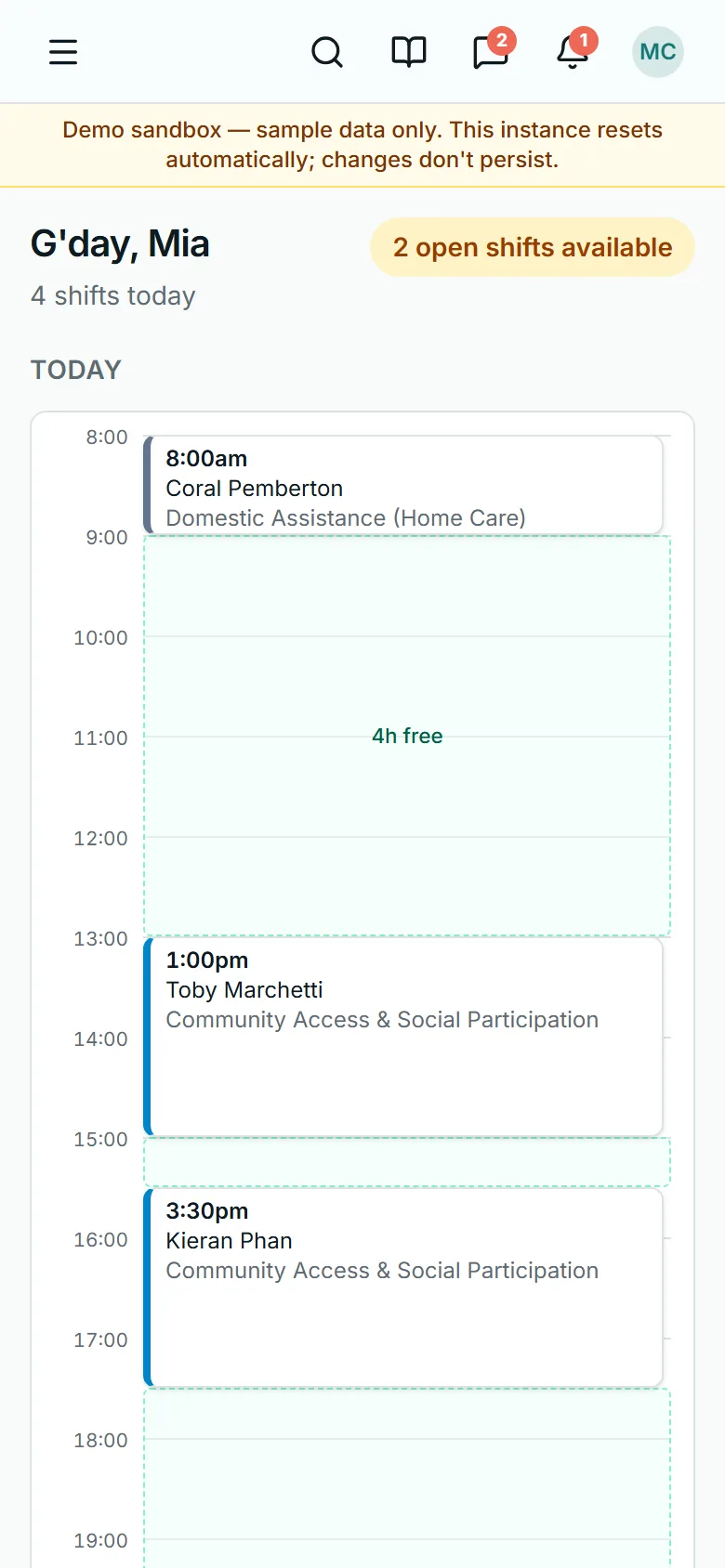
The day opens on Today: each shift with its time, the participant, the address, and Clock on.
Clock on opens three hours before a shift starts and closes when it ends.
Open shifts you could pick up show at the top.
Lesson 3
A shift, before you start
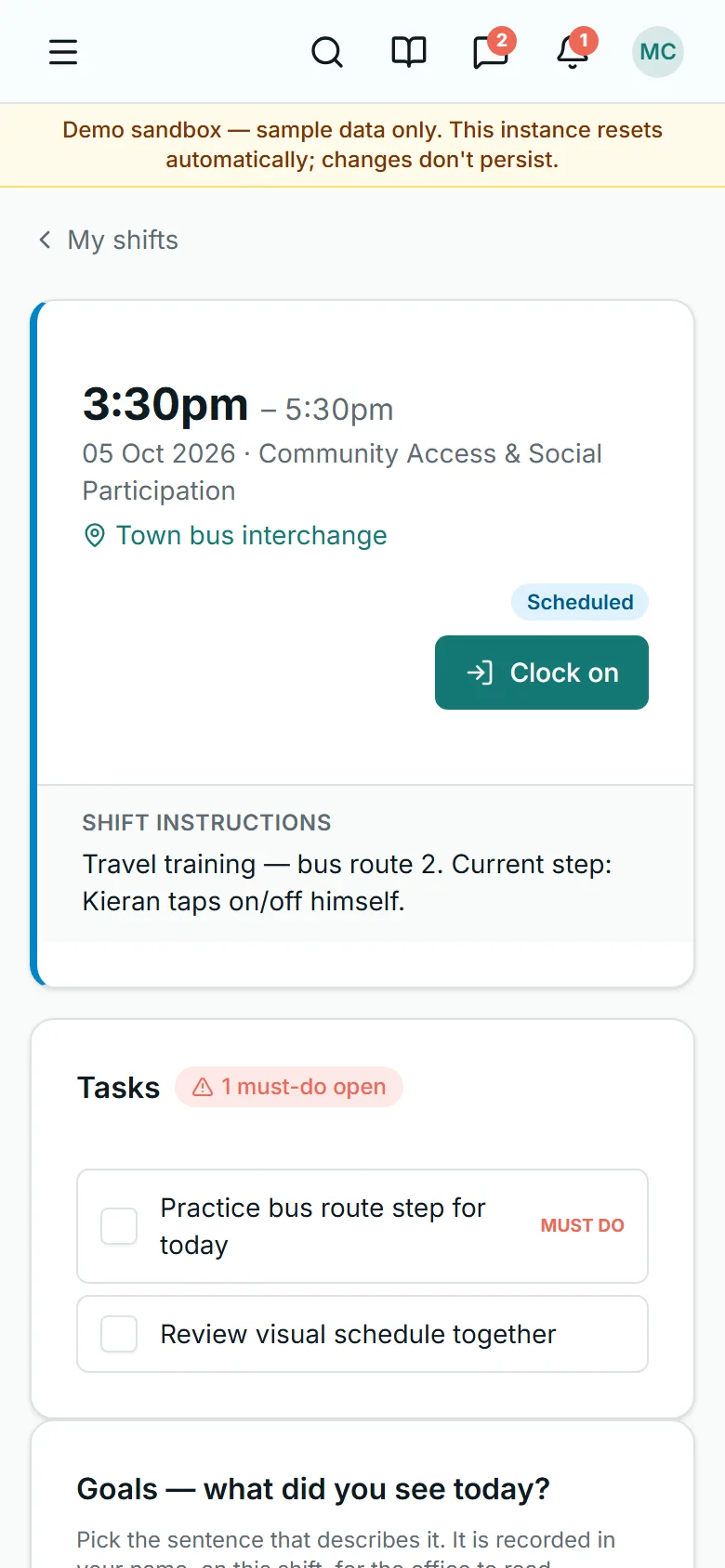
Open a shift to see its instructions and its tasks.
A task marked Must do has to be ticked before you can clock off.
Further down are the participant's emergency contacts and documents, and recent notes from the team.
Lesson 4
The participant's need-to-know
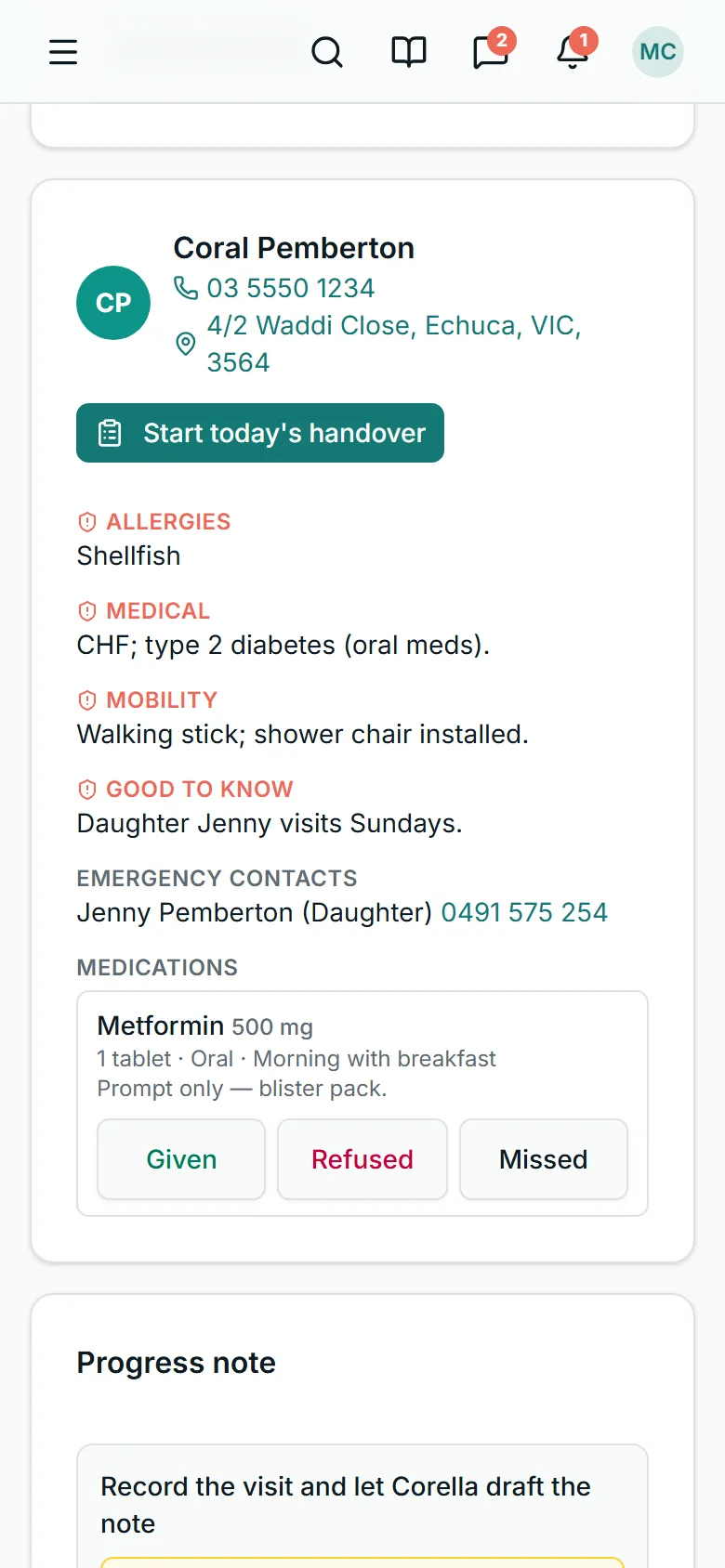
Further down is the participant: how to reach them, and what the office has marked for support workers to know before they walk in — allergies, medical conditions, mobility.
Lesson 5
Medicines on the shift
When the participant has medicines, each one is on the shift.
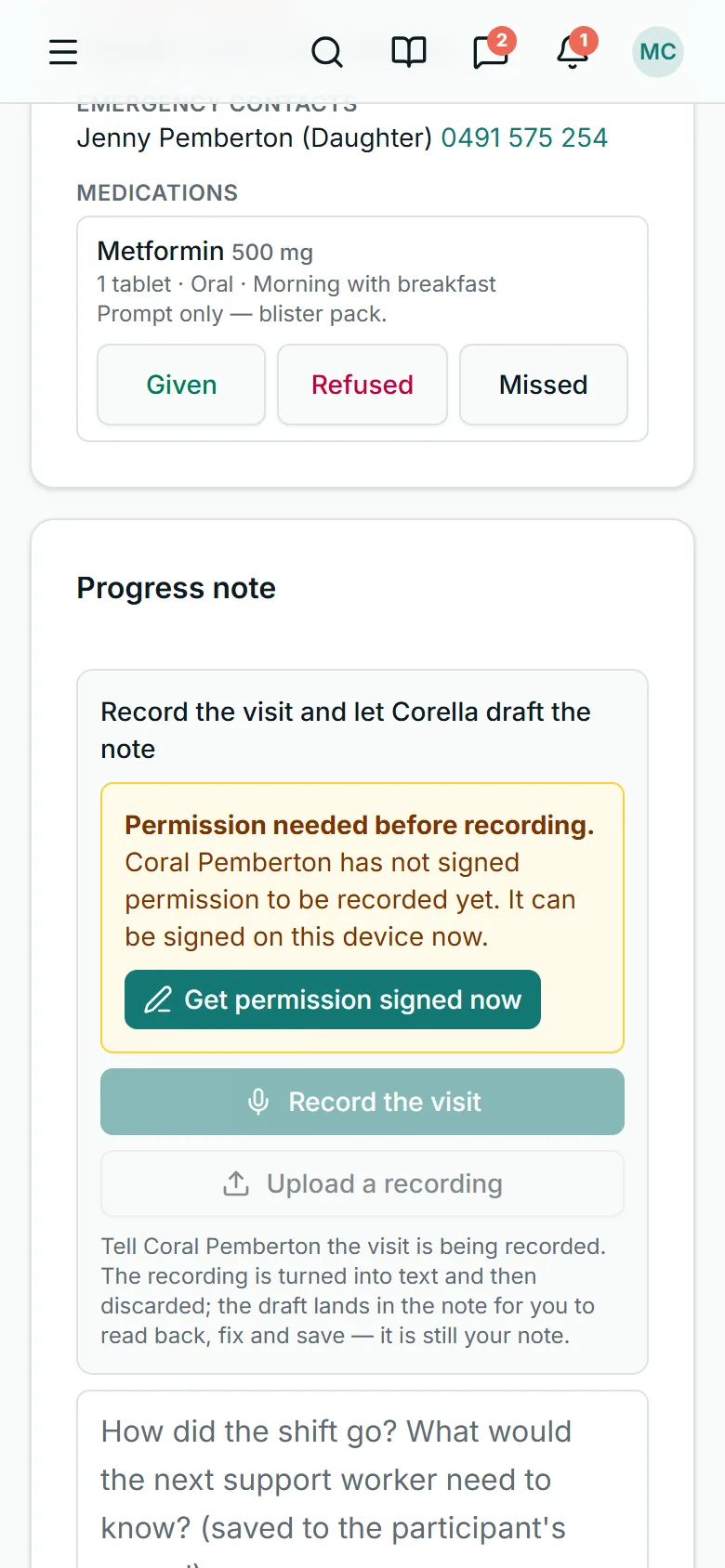
Tap what happened with the dose — Given, Refused or Missed — and it is recorded on this shift, with the time and your name, in their medication record.
An as-needed medicine wears an As needed badge, and after you tap Given, Add follow-up records how it went.
Medicines in a Webster pack are recorded once for each time of the pack — Breakfast, Lunch, Dinner or Bedtime.
Lesson 6
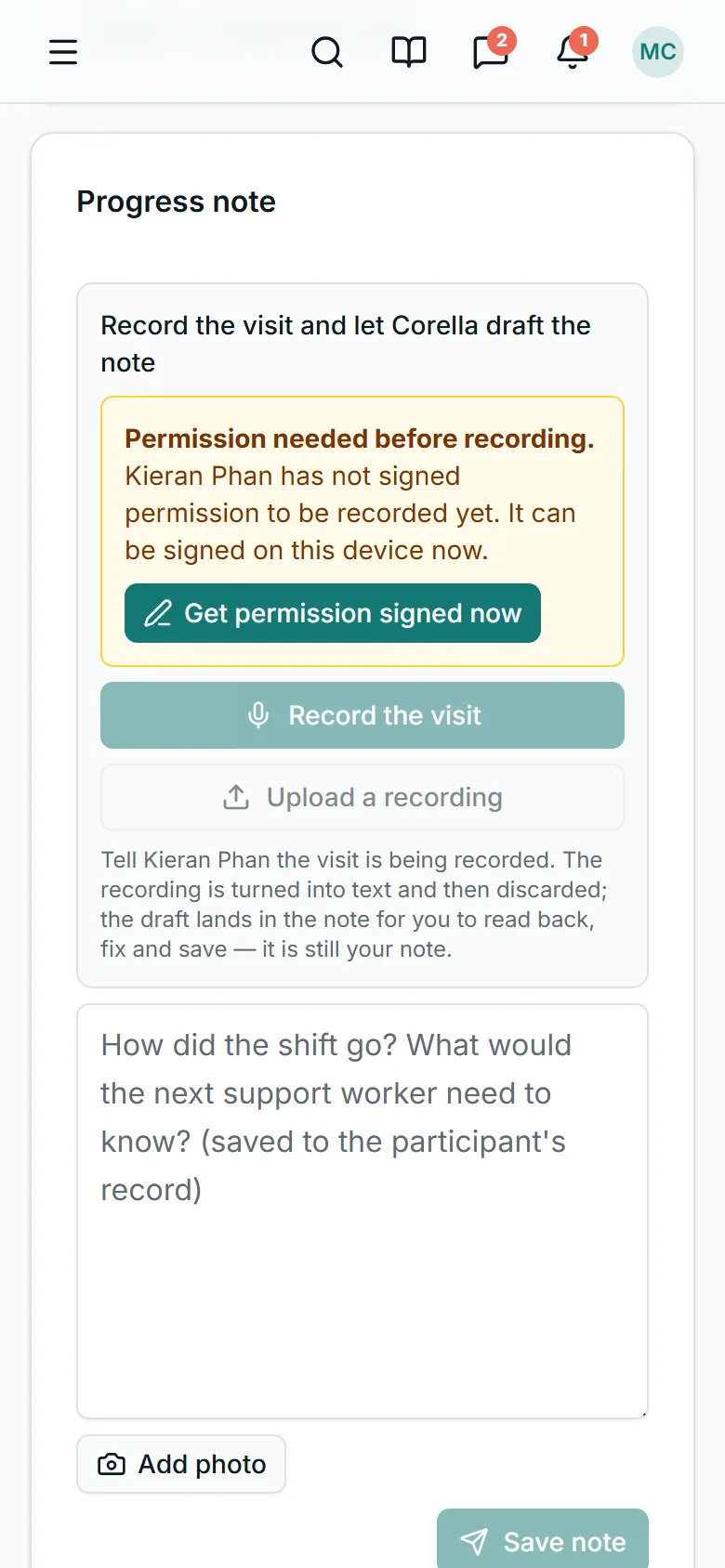
The note
Write the note on the shift: what you did and what you saw.
It is saved on this shift and in the participant's record, where the office reads it.
Lesson 7
Report an incident
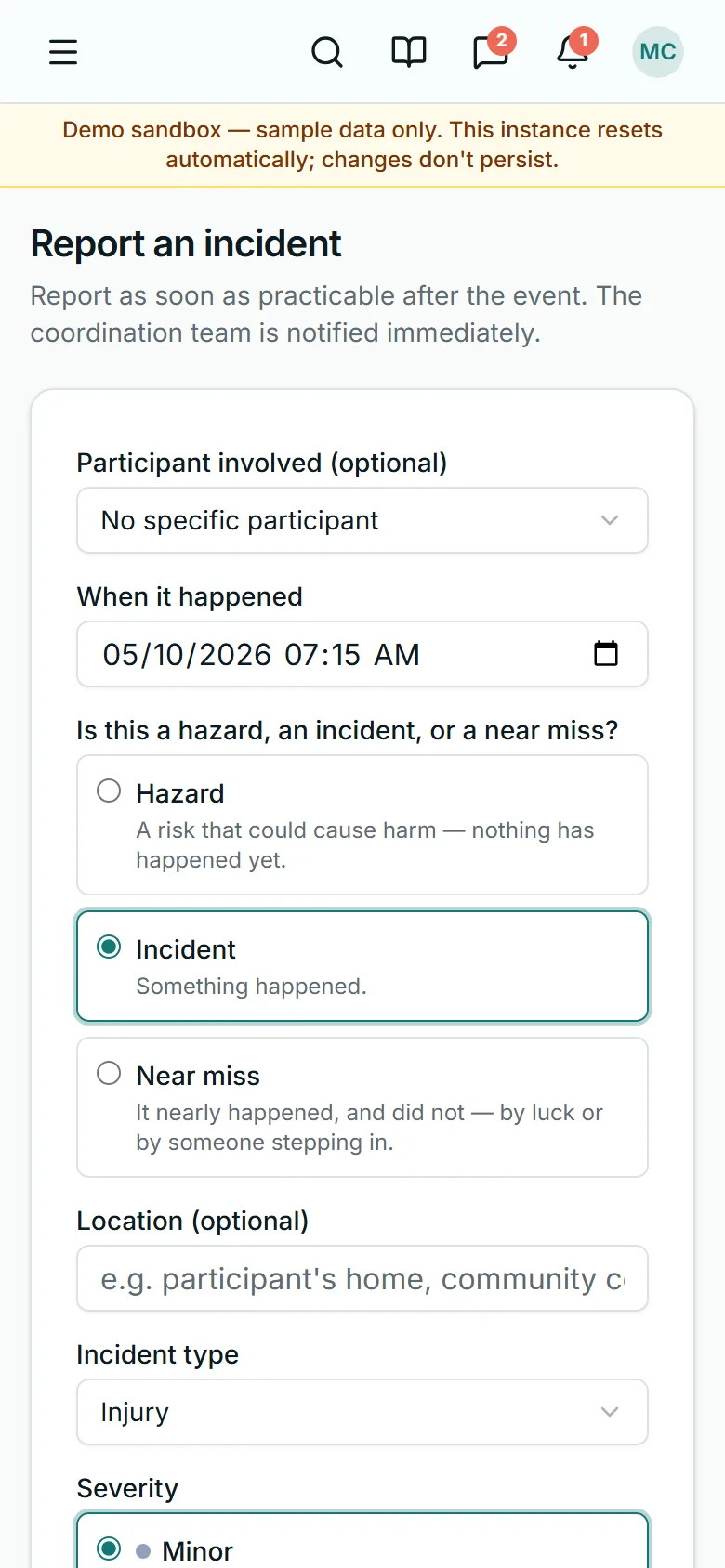
Anything that went wrong, nearly went wrong, or could: choose hazard, incident or near miss, say what happened, and send it.
The coordination team is told straight away.
From a shift, Report an incident is under Forms, and the report is linked to that shift.
Choose the incident type — Medication error is one — and how serious it was, and say what you did straight away.
Lesson 8 · check yourself
Three questions
Three questions on what this course showed.
You need two of three.
1. Clock on opens three hours before a shift starts.
- True
- False
Show the answer
True
2. The participant says no to a medicine when you offer it. What do you tap?
- Given
- Refused
- Missed
Show the answer
Refused
3. A near miss can be reported, not only an incident.
- True
- False
Show the answer
True

Rather see it live? Book a walkthrough.
Thirty minutes on a live instance, starting from how your organisation works today.