Progress notes
Progress notes software: Written on the shift. Final means final.
A progress note is the written record of one shift: what support was given, how the person responded and what the next worker needs to know. In Corella the worker writes it on their phone before they leave, in the sections your organisation sets, and it is attached to that shift. Once it is final, nobody can change it — a correction is added beneath it, with a reason and a name.

How it flows
One shift, one note — from the door to final.
- 1Before the door
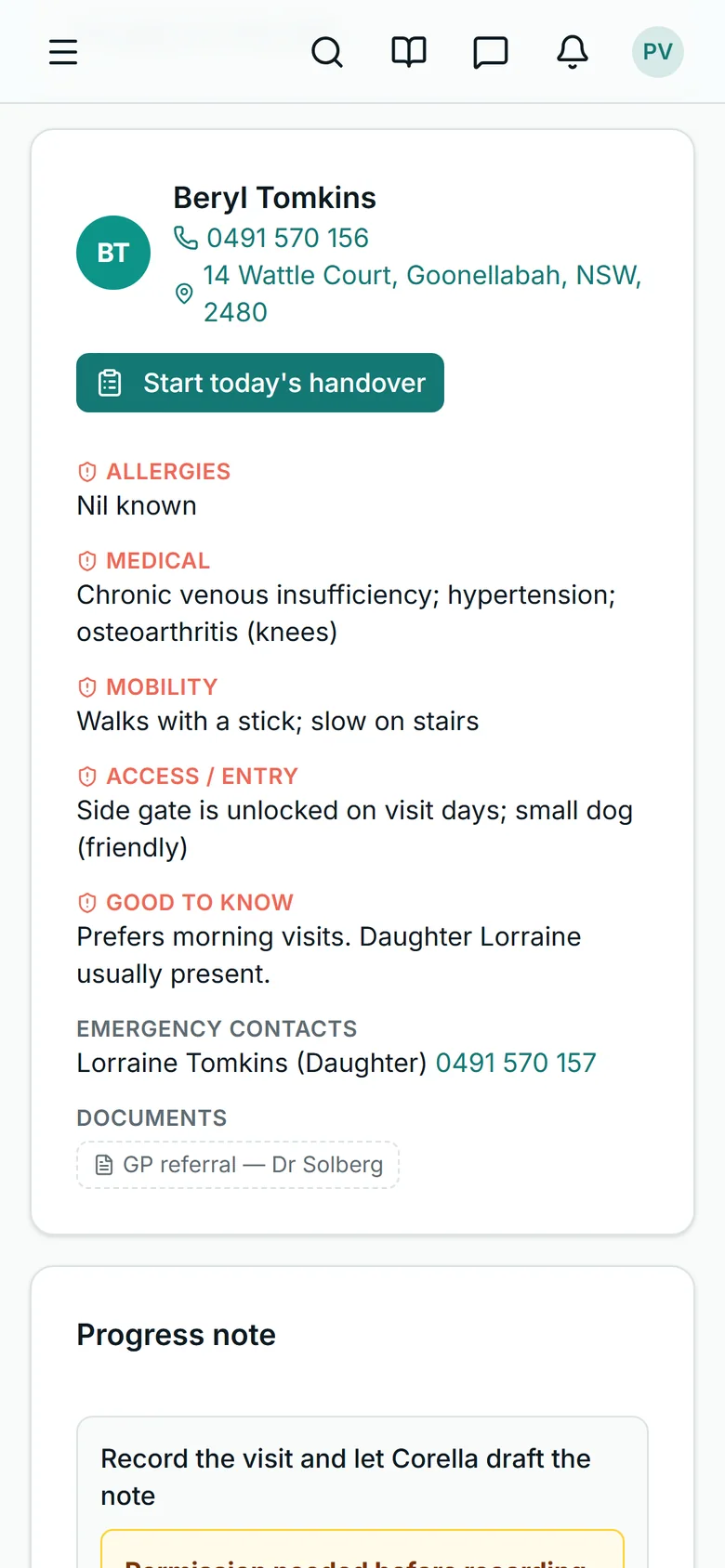
The worker opens the shift on their phone: the time and place, the office's instructions, the tasks, the goals to look out for and — if anything is recorded — the need-to-know brief, which they confirm when they press Clock on.
- 2Write it on the shift
The note box is on the same screen, in the sections your organisation set, with photos from the camera. What the worker types is kept on the phone as they type, and — where AI assistance is on — Check my note points out what the note doesn't yet say.
- 3Clock off
Where you require it, Clock off is refused until there is a note on that shift — with at least the number of words you set.
- 4Read in the office
The office reads every note in the Progress notes workspace — by person, kind of note, dates or words — marks a note office-only where it should be, and adds a later note to one of the person's recent shifts.
- 5Final
When your organisation's window passes — or an author marks their own note final on the office notes screen — nobody can change or delete it. A correction becomes an addendum with a reason, a name and a time.

What people ask first
The short answers, up front.
Who writes the note?
The worker on the shift, on their phone, and it is attached to that shift automatically. The office can write any kind of note from the Progress notes workspace.
What kinds of note are there?
Six: progress (the default), handover, feedback, enquiry, phone call and general. The names are fixed.
Can we set the headings?
Yes — up to twenty sections for each kind of note, each with a hint and a required switch, or start from a preset. N/A counts as an answer.
Can we require a note before clock-off?
Yes, with a minimum word count if you want one. It's off until you switch it on, and it covers the whole organisation.
What if the phone loses signal?
What they typed stays on the phone, for up to seven days, until it saves. There's no offline app: the save itself needs a connection.
Can a note be changed later?
Until it's final, by its author or an administrator — and the earlier wording isn't kept. After that, never: a correction is an addendum.
Can workers see each other's notes?
Where the person's record allows it — on by default — the six newest team notes appear on the shift screen, leaving out office-only notes.
Do families see notes?
No. The family portal shows funding, invoices and the upcoming visits, not notes.
Does AI write the note?
No. The worker writes it. Check my note suggests what's missing and never changes a word; the visit scribe drafts from a recording the person agreed to, and the worker reads, fixes and saves it.
Whose screen
The same job, from each seat.
In the office
The Progress notes workspace shows every note across every person — filter by person, kind of note, dates or words, or show only office-only notes, twenty-five to a page — and a person's record shows their thirty most recent. Here a coordinator marks a note office-only and writes a later note against one of the person's shifts from the last thirty days; an author marks their own note final or asks a senior colleague to countersign it; and a final note gets its addenda. There's no export of notes: they are read and searched in Corella.On the phone
The worker writes on the shift screen they already have open, in your sections, with photos straight from the camera. On a shift with more than one person, one note is filed on each person's record. They can edit their own notes on that visit until they're final — marking final, addenda and countersign requests are on the office notes screen, so a worker's notes lock by your window. They have no list of everyone's notes: only their own on the visit and, where you allow it, the team's recent notes about that person.For families
Families don't see notes. The portal shows the person's funding, the invoices to approve where you manage their plan, and their upcoming visits — so what a worker writes stays inside your organisation.A worked example
The shift summary preset — eight sections, every one required.
One of the two presets an administrator can start from under Settings → Attendance rules → Note sections. These are the product's own headings and hints; from there each heading, hint and required switch can be changed, sections added or removed, and the order moved.
- Shift start time
- Exact time of shift commencement
- General progress notes
- Summary of events throughout the shift
- Activities completed
- Activities completed throughout the shift
- Behaviours
- Behaviours of concern, and the techniques used to de-escalate
- Area of interest
- Activities the participant has shown interest in
- Positive achievement
- Achievements and goals the participant has displayed
- DSW communication
- Specific communication to alert the rest of the team
- Shift end time
- Exact time of shift conclusion
A DSW is a disability support worker. A note in these sections can't be saved until every required section has something in it — N/A counts, and each section has an N/A button. The other preset is an incident note in five sections: when, who, witnesses, what happened and the impact.
In detail
The detail, on the real screens.
Six kinds of note, and who writes which
A progress note is the default kind; handover, feedback, enquiry, phone call and general sit beside it. A support worker writes from their shift screen, which always saves a progress note attached to that shift — and only for people they're rostered with. Coordinators and administrators write any kind from the Progress notes workspace, and can attach a note written later to one of the person's shifts from the last thirty days; it then reads On the shift of, with the date. In the office a note can also be linked to the person's goals.
Worth knowing: the names of the kinds are fixed — your organisation's words rename the person and the worker, not the kinds of note.

Sections your organisation names
An administrator can give each kind of note up to twenty named sections, under Settings → Attendance rules → Note sections, each with a hint shown under the heading and a switch that makes it required — or start from a preset: a shift summary in eight sections, or an incident note in five. A note can't be saved until every required section has something in it; N/A counts, and each section has an N/A button. The sections are stored as bold headings inside the note, so everything that reads notes reads them the same way.
Worth knowing: it's off until an administrator saves it — until then each kind of note is one free-text box.

A note before clock-off, if you want one
Switch on Require a progress note before clock-off and, if you like, set a minimum number of words — up to five hundred. The worker's own Clock off is then refused until they have written a note on that shift that meets the minimum. It works the same on a phone and at a desk, because it's one application.
Worth knowing: it covers the whole organisation, not one person or one service; it isn't checked when the office enters times on a timesheet, or when a sleepover clocks off by itself; nothing reminds the worker before they tap Clock off; and section headings count as words.

Written on the phone — and kept if the signal drops
The note box sits on the shift screen the worker already has open. Photos come straight from the camera — several to a note. What they type is kept on that phone as they type it, for that person and that visit, so a reload or a dead spot doesn't lose it; if a save can't get through, the phone says the note is kept there, and to press Save again once there's signal. On a shift with more than one person, the worker writes one note and it's filed on each person's record, attached to the shift; each copy can then be edited on its own.
Worth knowing: there's no offline app — saving needs a connection — and a kept note is dropped after seven days if it's never saved; photos only, each under 10 MB; and nothing on screen tells the worker that a group-shift note is copied to each person.

Speak it instead: dictation and the visit scribe
Two separate switches, both off until you turn them on. Dictation adds a Dictate button: the worker's own speech becomes text in the note, for them to read and correct, in clips of up to two and a half minutes. The visit scribe goes further. With the person's signed permission, the worker records a one-person visit, and a few minutes later a draft note arrives in your sections. Nothing is saved until they read it back, fix anything wrong and press Save — and they can discard it instead.
Worth knowing: speech is transcribed in the European Union — there's no Australian region — and the scribe's draft is written by our AI provider in the United States; the audio isn't kept, but the transcript text is, in your organisation's own Corella database; and the scribe isn't offered on a shift with more than one person.

Final means final
A note becomes final when your organisation's window passes — twelve, twenty-four, forty-eight or seventy-two hours, or seven days — or when its author marks it final on the office notes screen. From then on nobody can edit or delete it: not the author, not a coordinator, not an administrator. A correction is an addendum beneath the note, added on the office notes screen, with a required reason, its author and the time. Separately, an author writing in the office can ask a senior colleague to countersign; they countersign it, or send it back with a reason.
Worth knowing: the window is off until you set it, and a support worker can't mark their own note final from the phone — so without a window their notes stay editable; before a note is final its author or an administrator can edit it and the earlier wording isn't kept — the audit log records that it changed, who and when, not the old words; the author can delete their own note within twenty-four hours, or an administrator can, and a deleted note is gone; and a countersignature doesn't lock the note.

Straight answers
What warns you, what stops you — and what it doesn’t do.
Warns you
- A shift with more than one type of support tells the worker their note should cover each of them.
- Check my note — where AI assistance is on — lists up to three things the note doesn't yet say, and changes nothing.
- A signature the shift asks for — the person's or the worker's — that's still missing warns at clock-off rather than stopping it, so a sleeping client or a blackspot never traps a worker on the clock.
- A note that can't be saved says so on the phone, and that it is kept there until it can.
Stops you
- Clock off, until there's a note on the shift that meets your minimum word count — where you've switched that rule on.
- Clock off, while a must-do task on the shift is still open.
- Saving a note while a required section is empty — N/A counts as an answer.
- Editing or deleting a final note — for anyone, administrators included.
- Countersigning your own note.
- A support worker writing a note for someone they aren't rostered with.
- Attaching anything but a photo — JPEG, PNG, WebP or HEIC, under 10 MB each.
Doesn't do
- Export notes — there's no CSV or PDF of notes; they're read in Corella.
- Flag a late note, or remind anyone that a note is due.
- Keep the earlier wording of a note edited before it's final.
- Save without a connection — a typed note waits on the phone, but the save itself needs signal.
- Offer Mark final, addenda or countersign requests on a worker's phone — they're on the office notes screen.
- Show notes to families — the portal doesn't include them.
- Write the note for the worker.
Who stays responsible
The worker writes what happened, in their own words, and your organisation decides what a note needs. Corella keeps the note, shows it to the people who should see it, records who wrote it and when, and stops it changing once it's final. What a note means — and what happens next — stays with your team.
The rulebook
Questions, answered properly.
Is a progress note required before a worker clocks off?
Can anyone change or delete a note after it's written?
What does Check my note check?
What happens if the phone loses signal while a worker is writing?
Can support workers read other workers' notes?
Can a support worker read an office-only note?
Do families see progress notes?
Does AI write our notes?
Can we export our notes?
What happens to a worker's notes when they leave?
Can one note cover a group shift?
Does anything read our notes automatically?
Guides for this
Read the rule behind it.

See progress notes software on a live instance.
Try the NDIS demo with a time-boxed pass, or book a walkthrough and we'll show you this part of Corella in your own words.