Programs & community
Group programs, meals & participant portal: Run the program, split the meal, show the family.
Day programs, community access and group supports have a different shape from a one-to-one visit: a roll, a timetable, a venue, and a risk that belongs to the whole group. In Corella a program is its own record — catalogue, enrolment, sessions and the roll — with its documents and risk attached to the program rather than to one person's file. Beside it sit meal orders that split the bill between the participant and the funder, and a portal where the person and their family see their funding, their visits and the plan-managed invoices waiting for their say.


How it flows
From the catalogue to the family's phone.
- 1Put the program on the catalogue
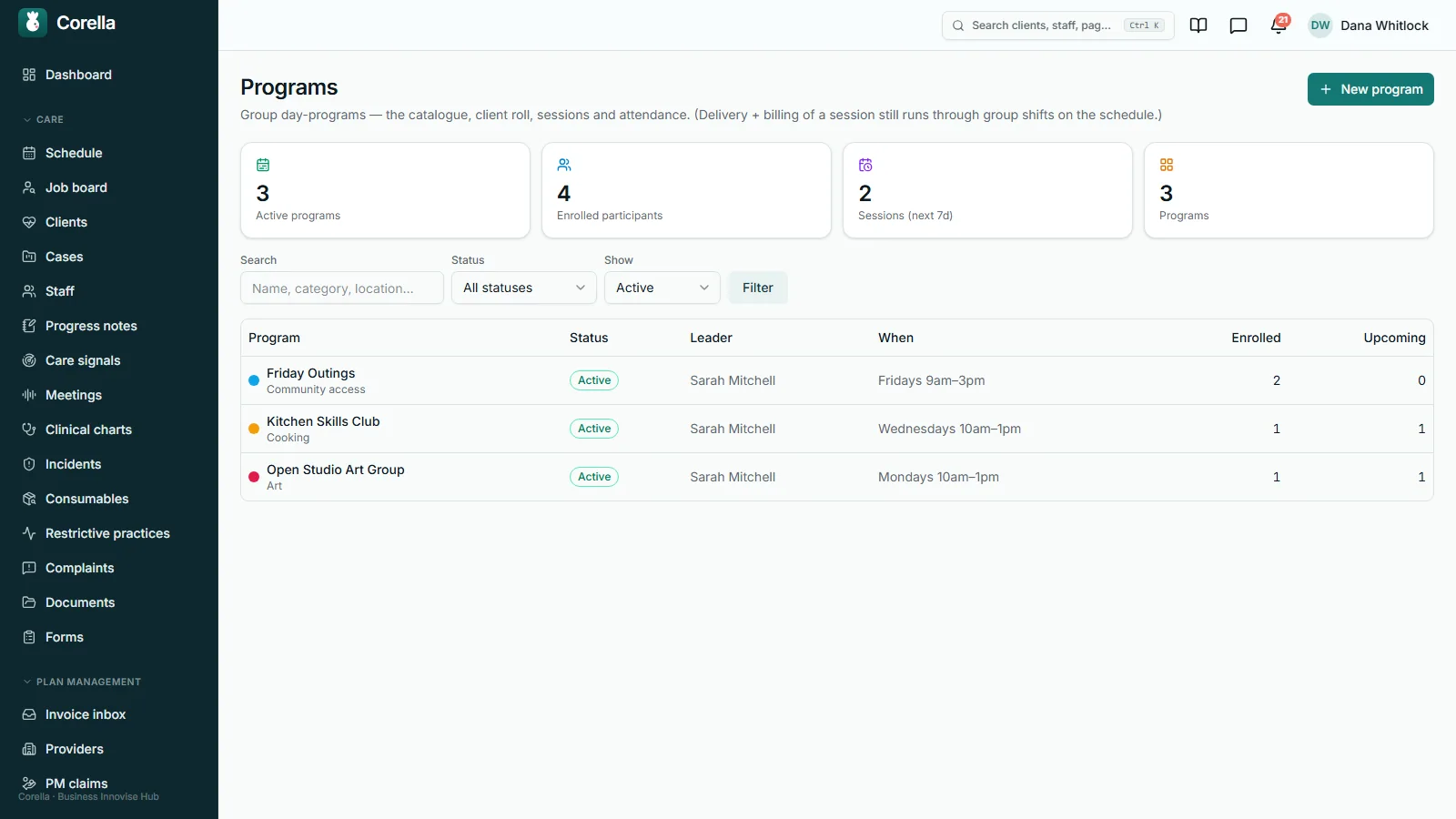
Give it a name, a category, a leader, a weekly timetable, a venue and the NDIS item it is claimed under, and a status: draft, active, paused or ended.
- 2Enrol people, then take the roll
Each person on the roll is enrolled, on the waitlist or exited. Each session records who was present, absent or sent an apology — marked on the session itself.
- 3Deliver and bill it as a group shift
The delivery is a group shift on the schedule, booked separately from the session, which splits the bill equally between the participants on it, and the notes are written on that shift.
- 4Sell the meal, split the bill
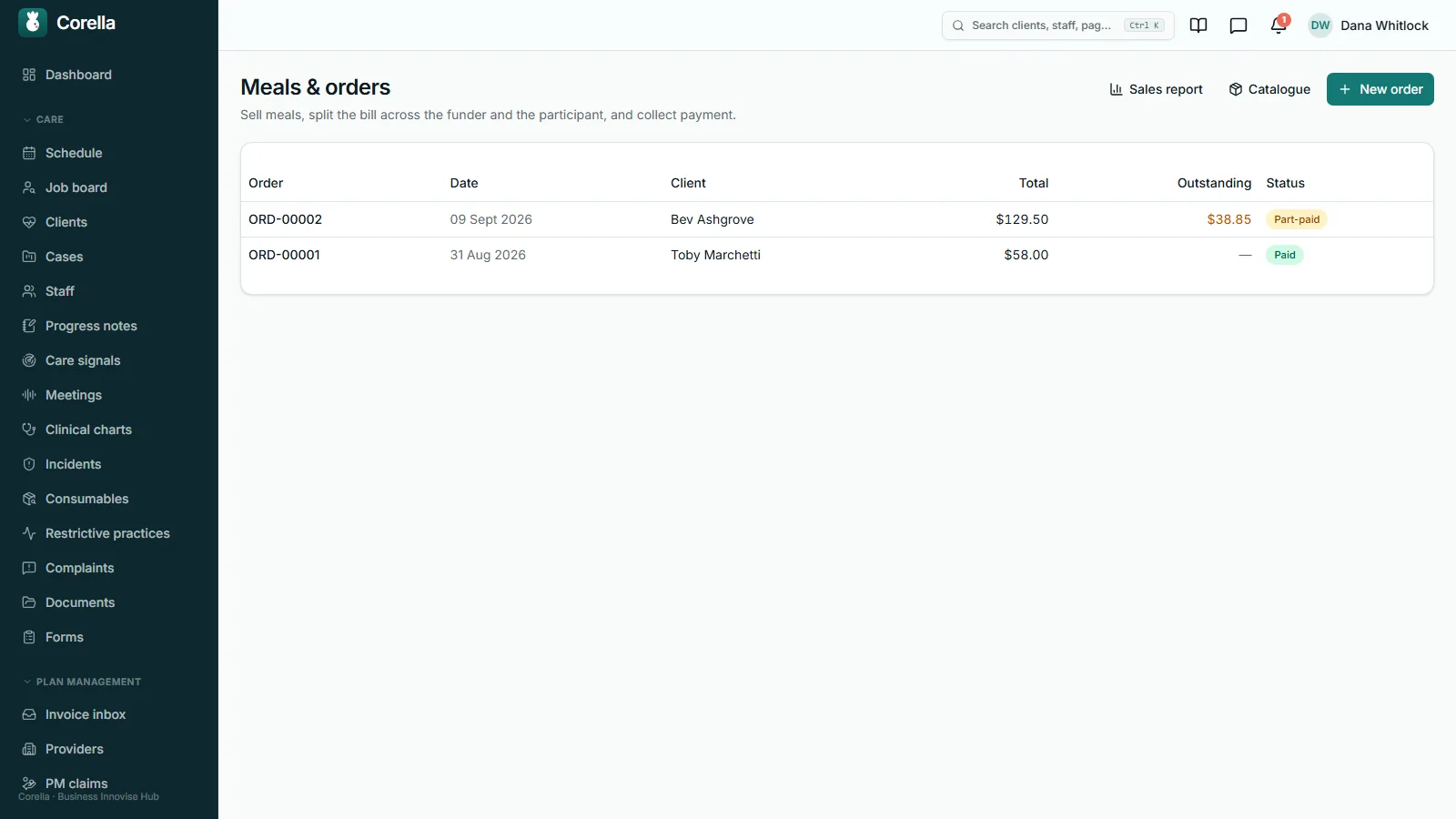
A meal order divides its total between the participant and the funder by a percentage you can edit. The funder's share becomes an invoice; the participant's share is collected and receipted.
- 5The family sees their side
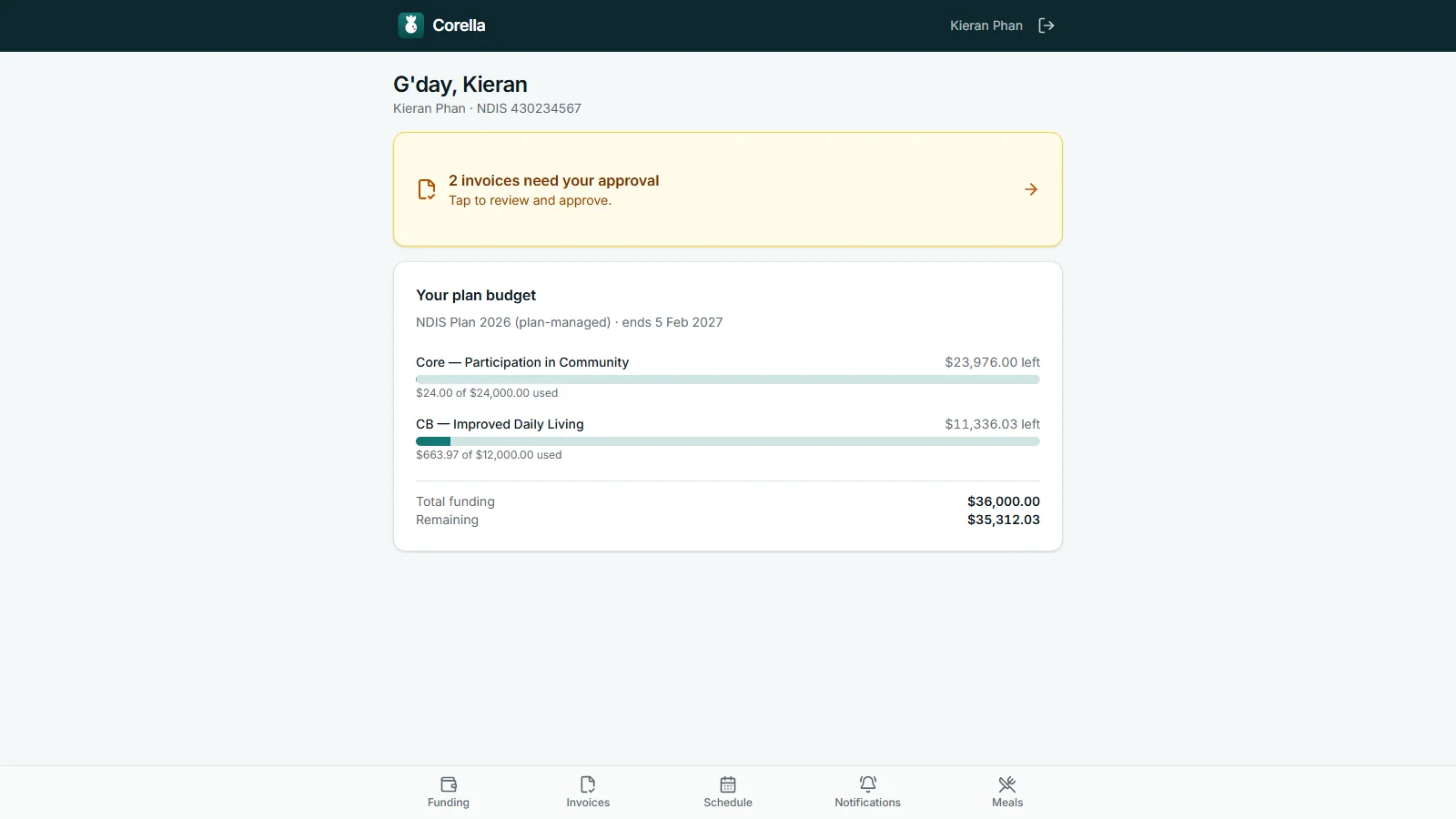
In the portal the person — or a family member with their own login — sees the plan budget, the next four weeks of visits and the provider invoices waiting for their approval.

What people ask first
The short answers, up front.
How is a program session delivered and billed?
As a group shift on the schedule, booked separately from the session, which is the diary entry and the roll — so billing comes from the roster, and attendance from the roll.
Where is attendance kept?
On the program's session: present, absent or apology for each enrolled person. Apology is its own answer.
Can a risk assessment belong to the program?
Yes. A risk assessment can take a group program as its subject — the venue, the activity, the transport — and the program keeps its own documents as well.
Is there a waitlist?
Yes, as a status on the roll: enrolled, waitlist or exited, and your coordinator decides who comes off the waitlist.
Is the meals module included?
Yes. It's an optional module in the base product, switched on when you sell meals or products.
How is a meal order split?
By a percentage you can change on every order. Your organisation sets its own default; a new organisation starts at 30% for the participant and 70% for the funder.
Who is invoiced for the funder's share?
The plan manager or care advisor you choose from your contacts. The share becomes an ordinary invoice, and every order names who it goes to.
Can a participant pay online?
Yes, once your organisation connects its own card account: the portal then shows Pay now for the participant's share. Until then it reads Payable at the office.
What does the portal show?
The plan budget by category, the next four weeks of visits, invoices waiting for approval, a page of email choices and — with the meals module — each meal order and what is still owed.
Which invoices can someone approve in the portal?
Invoices from other providers that your organisation pays as the person's plan manager.
Do portal logins cost anything?
Nothing. Seats count staff only, so the person and their family members sign in free.
Whose screen
The same job, from each seat.

In the office
The coordinator builds the program, keeps the roll on each session, and files the program's documents and risk assessments on the program, where the next auditor will look for them. Finance raises meal orders at the front desk or over the phone, records the participant's payments as they come in — part-payments across several days are fine — and reads the sales report. When someone approves or declines an invoice in the portal, the office is notified, and a decline arrives as urgent with the reason attached.On the phone
Support workers on a program's outing see it the way they see any shift: a group shift in their own app, with the notes written on that shift. The program screens are office screens that work in a phone's browser, so a coordinator can mark the roll at the door. The portal is laid out for a phone first — one column, a tab bar along the bottom — and opens in the browser with nothing to install.For families
The person, or a family member with their own login, signs in to see the plan budget by category, the visits booked for the next four weeks — with the worker's name, or to be confirmed — and any plan-managed provider invoices waiting for a yes or a no. They approve with one tap or decline with a reason, choose which emails they receive and, where you sell meals, see each order's funded share and their own contribution. Where you switch it on, a person or their family asks from their portal for a visit, or to cancel one, after reading the notice that counts as short; each ask waits in the roster's Shift requests — Book opens the New shift form from it, the visit's own Cancel answers a cancellation, and Keep it or decline sends a reason they read — and the notice counts from when they asked.A worked example
One meal order, two destinations.
An order from the NDIS demo, with its made-up prices: a weekly standing order taken by phone, split at the default of 30% for the participant and 70% for the funder. One order, and each share goes where it belongs.
- The order (demo catalogue)
- 5 pies · 5 lasagnes · 5 fruit cups
- Order total (catalogue prices include GST)
- $129.50
- Funder's 70% — invoiced to the plan manager
- $90.65
- Participant's 30% — collected directly
- $38.85
- Paid so far by the participant
- $0.00
- Participant's share still to collect
- $38.85
Demo figures from the NDIS demo's meals screens, not a price anyone charges. The default percentage and the funder are set per organisation and can be changed on any order.
In detail
The detail, on the real screens.
A program has a shape of its own
Each program is a catalogue entry with a name, a category, a leader, a weekly timetable, a venue, a colour and the NDIS item it is claimed under, plus a status that moves between draft, active, paused and ended. The catalogue searches by name, category or location, and each row shows who leads the program, when it runs, how many people are enrolled and how many sessions are coming up. Ticked in Settings, a program can also appear on the programs timetable of your organisation's connected website — you choose which. Delivery and billing of a session run through group shifts on the schedule, and the screen says so under its own heading.

The roll, the paperwork and the risk live on the program
Open a program and it is one page: the sessions, the enrolment roll, the program's documents and its risk assessments. Each person on the roll is enrolled, on the waitlist or exited. Each session has its times, a location, who led it and a status — scheduled, completed or cancelled — and every enrolled person is marked present, absent or apology. The documents are the program's own, such as designs and session plans, each with a category, a document code and a version. And a risk assessment can take the program as its subject: we added that after a coordinator asked why the bus outing's risk lived on one participant's file. The assessor picks likelihood and consequence for each hazard, the software multiplies them and looks up the label, and an overdue review is marked due overnight.

Delivery and billing run on the roster, on purpose
The delivery is a group shift on the schedule: one shift can hold several participants, with the bill split equally between them, and several workers when the ratio calls for it. The support workers see it in their own app like any other shift, the notes are written on that shift, and it is invoiced with everything else. Keeping the session and the shift apart is deliberate. The roll is the record of who came; the roster is the record of who worked and what it cost; and each stays a clean record of its own.

A meal order, split at the counter
The Meals & products module is for organisations that prepare or sell food and share its cost with a funder. The food catalogue holds your products with GST-inclusive prices, a GST code, a SKU and a category, and a line you stop selling is archived rather than deleted. An order picks the person and the channel — at the front desk, or by phone for delivery — adds products and any delivery notes, then sets the split: the percentage the participant pays, whether the funder is a plan manager or a care advisor, and which one to invoice, chosen from your contacts. Before anything is created, the screen shows the total, the GST and each share in dollars, marked invoice or collect directly. Orders are numbered, and a repeat order copies an earlier one.

Two destinations, and a report that adds them up
Creating an order sends each share where it belongs. The funder's share becomes an ordinary invoice straight away — your numbering, your payment terms, addressed to the plan manager or care advisor you chose, on a line that is GST-free by default — and if your organisation has Xero connected, it can go there like any other invoice. The participant's share stays on the order as money owing. Payments are recorded as they arrive — EFTPOS, cash, card or bank transfer, in part or in full, over as many days as it takes — and each one gets a numbered receipt that prints with your ABN and the GST included. The sales report totals it for this month, the last 30 days, the financial year or all time: sales and GST, what was invoiced to funders, what was collected directly, what is still owed, and sales by product.

The family's view starts with the money
The portal's first screen greets whoever signed in by their own first name, names the person and their NDIS number, and puts the plan budget in plain sight: each category from their active service agreement, with what has been used, what is left and the totals underneath. If an invoice is waiting for their decision, a banner says how many and takes them straight to it. Anything else about the person appears where your organisation has opened one of its own fields to the portal, once something is recorded in it. The portal carries your organisation's logo, is laid out for a phone, and opens in the browser with nothing to install.

Approve or decline, one tap each
When your plan-management team enters an invoice from another provider and it passes its checks — a plan- or self-managed participant with an NDIS number, an invoice number that provider has not used before, money left in the budget category — it goes to the person's portal to wait for their say — for five days; an invoice nobody answers by then is approved automatically. Each invoice shows the provider, the number, the date, the total and its lines. Approve records who approved it and when, and tells the office. Decline opens a box for the reason, with examples such as the service didn't happen or the amount is wrong, and reaches the office as urgent, because a declined invoice is money stuck until someone acts. Underneath, the history of the last 60 shows where each one got to, from approved through to provider paid.

Four weeks of visits, and the person's own email choices
The schedule lists the visits you've published for the next four weeks: the date and time, the service, who is coming and where. A visit with nobody assigned yet still shows, marked to be confirmed in your organisation's own name for the role, rather than vanishing from the week; cancelled visits are left out. Nothing your organisation sends goes out until three separate switches agree, and one of them is ours; once email is on, the Notifications page is where the person chooses which emails they get. Notes, the care plan, incidents and documents stay inside your organisation, by design. A family member can hold their own login for the person, and logins cost nothing, because seats count staff only.

Straight answers
Safety built in: what warns you, and what it stops.
Warns you
- A banner on the portal's first screen says how many invoices are waiting for the person's decision, and takes them straight there.
- The office is notified when an invoice is approved in the portal, and a decline arrives as urgent with the person's reason.
- The new-order screen shows the total, the GST and each share in dollars — what will be invoiced and what will be collected — before the order is created.
- The portal's email page says so when your organisation sends no email, rather than letting the person tick boxes that do nothing.
- A program's risk assessment past its review date is marked Review due overnight and raised in the app's morning alerts.
Stops you
- Creating a meal order before you name the plan manager or care advisor to invoice — unless the participant pays the whole amount.
- A payment larger than what is still owed on the participant's share is refused.
- Cancelling an order with payments recorded against it, until they're refunded — in Xero or on the EFTPOS terminal; cancelling an unpaid order voids its funder invoice.
- Answering a portal invoice twice — once it's approved or declined, it's settled.
- A portal login showing anyone else — each is tied to one person's record.
Who stays responsible
Your organisation decides each meal order's split and who is invoiced, and Corella applies it exactly as set. An approval in the portal is the say-so of whoever holds the login — the person, or a family member with their own login — recorded with their name and the time, and an invoice nobody answers is approved automatically after five days; claiming and paying the provider stay with your plan-management team. And the roll is what your staff recorded, and Corella keeps it as they marked it, every change in the audit log.
The rulebook
Questions, answered properly.
- The participant and family portal, in depth
- Billing & payroll
- Rostering & attendance
- Compliance & documents
- Your words
- Connected website
- NDIS providers
- Try the NDIS demo
In the help centre

How do the roll and the bill fit together?
What happens if someone turns up who isn't enrolled?
What happens when a meal order is created?
Can we cancel a meal order?
Can the meals module invoice an aged-care funder?
Which invoices will a participant see in the portal?
What happens when someone declines an invoice?
Can a family member use the portal?
Will families get emails from the portal?
Can our programs appear on our website?
How can we see the portal for ourselves?
Guides for this
Read the rule behind it.

See group programs, meals & participant portal on a live instance.
Try the NDIS demo with a time-boxed pass, or book a walkthrough and we'll show you this part of Corella in your own words.