People & HR
HR, recruitment & training for care providers: One staff file, from the job ad to the roster.
Care is a workforce business, and the workforce paperwork usually lives in a different system from the work. Corella keeps the staff file beside the roster it feeds: compliance documents the booking screen can see, a hiring pipeline, contracts and onboarding, training you write and assign, leave and availability, the on-call register — and the messages that go out to staff, behind a gate that is partly ours. It warns and records; the decisions stay with your people.


The rule you work under
An auditor asks whether this worker's check was current on the day.
Registered NDIS providers are audited against the NDIS Practice Standards, and the staff question is rarely whether you collect police checks, first aid or manual handling. It is whether this worker's check was current on the day they worked this shift — and whether the person who booked that shift could see it. That is answered by a dated record on the worker's own file, visible where the roster is built, not by a spreadsheet somebody remembers to update.
NDIS Practice Standards — NDIS Quality and Safeguards CommissionHow it flows
From the job ad to a rostered shift
- 1Advertise and shortlist
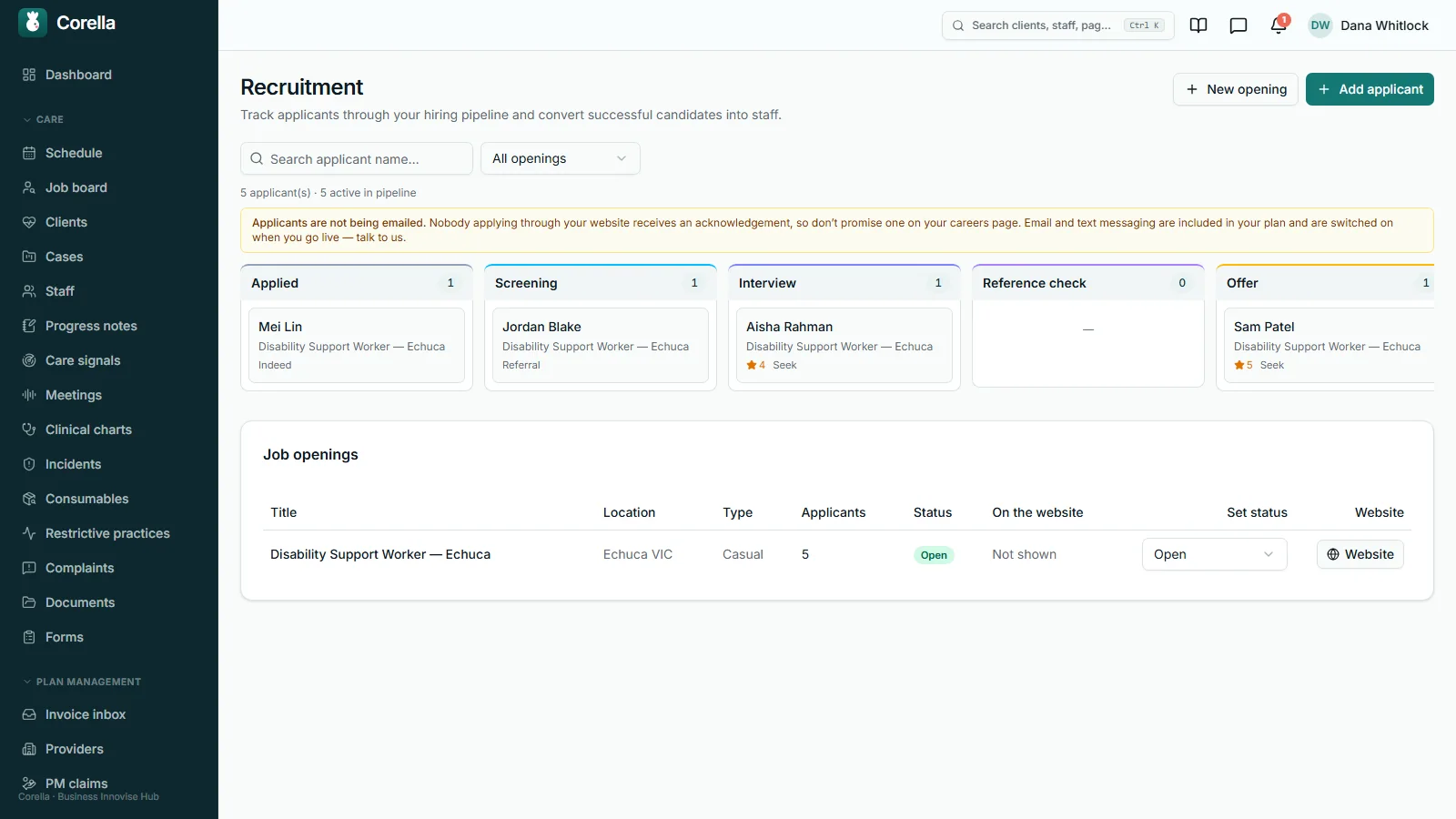
Open a role — on your connected website only if you tick it, with a closing date if you want one — and move applicants from applied through screening, interview and reference check to offer.
- 2Hire
Converting the person you choose creates their staff record and their login, and gives them the courses set for their level. The contract and the onboarding checklist follow as deliberate next steps.
- 3Onboard
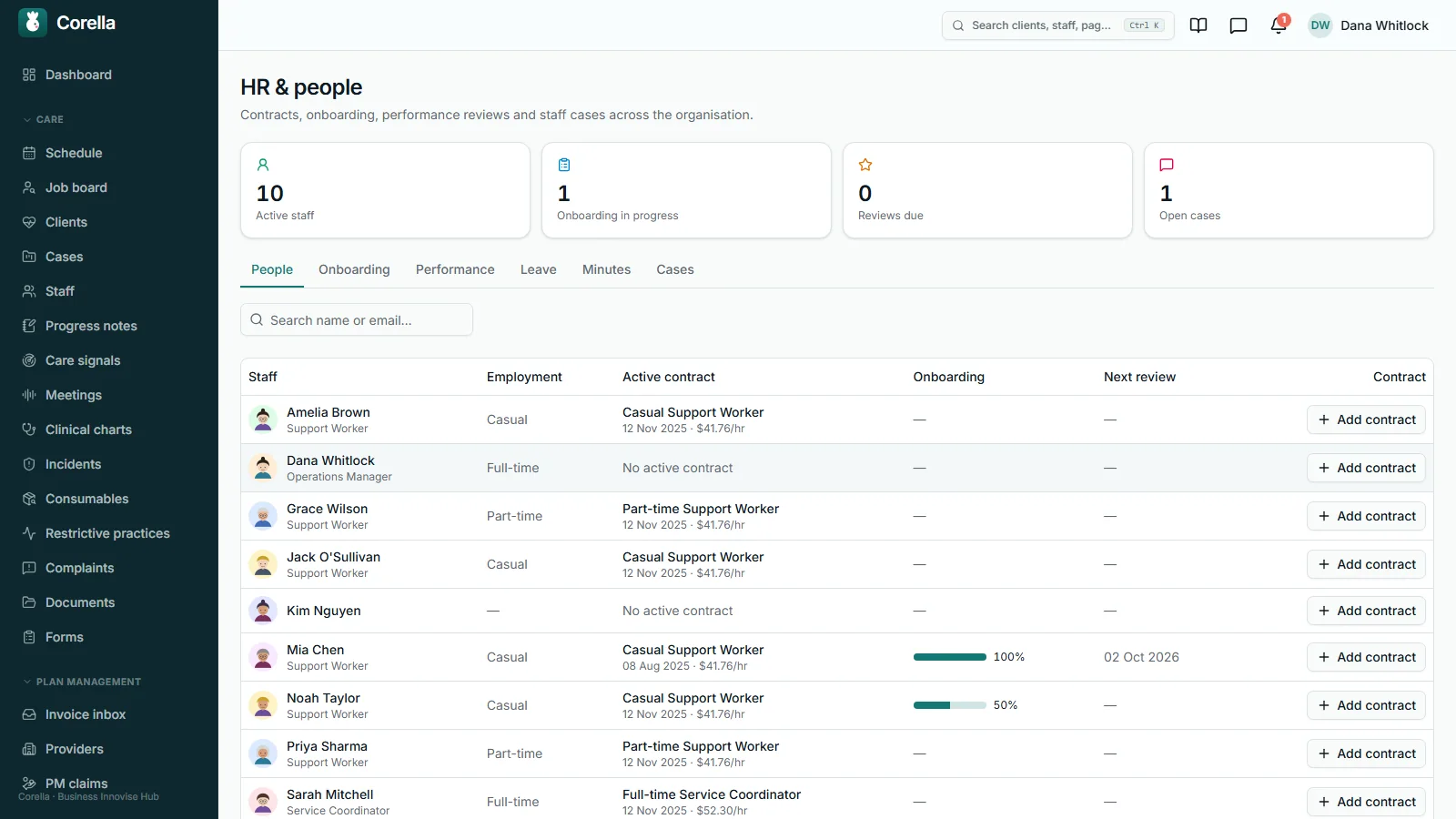
Add their contract, start their onboarding checklist from the HR screen, and email them a set-up link so they choose their own password. It lasts seven days, and an administrator can send one to everyone active who has yet to sign in, in one click, through your instance's email service.
- 4Keep them current
Compliance documents carry expiry dates and lights, mandatory courses show who is overdue, and clinical skill sign-offs carry a date to be assessed again. A worker sends a renewed document from their phone, and the office confirms it once.
- 5Roster with the file in view
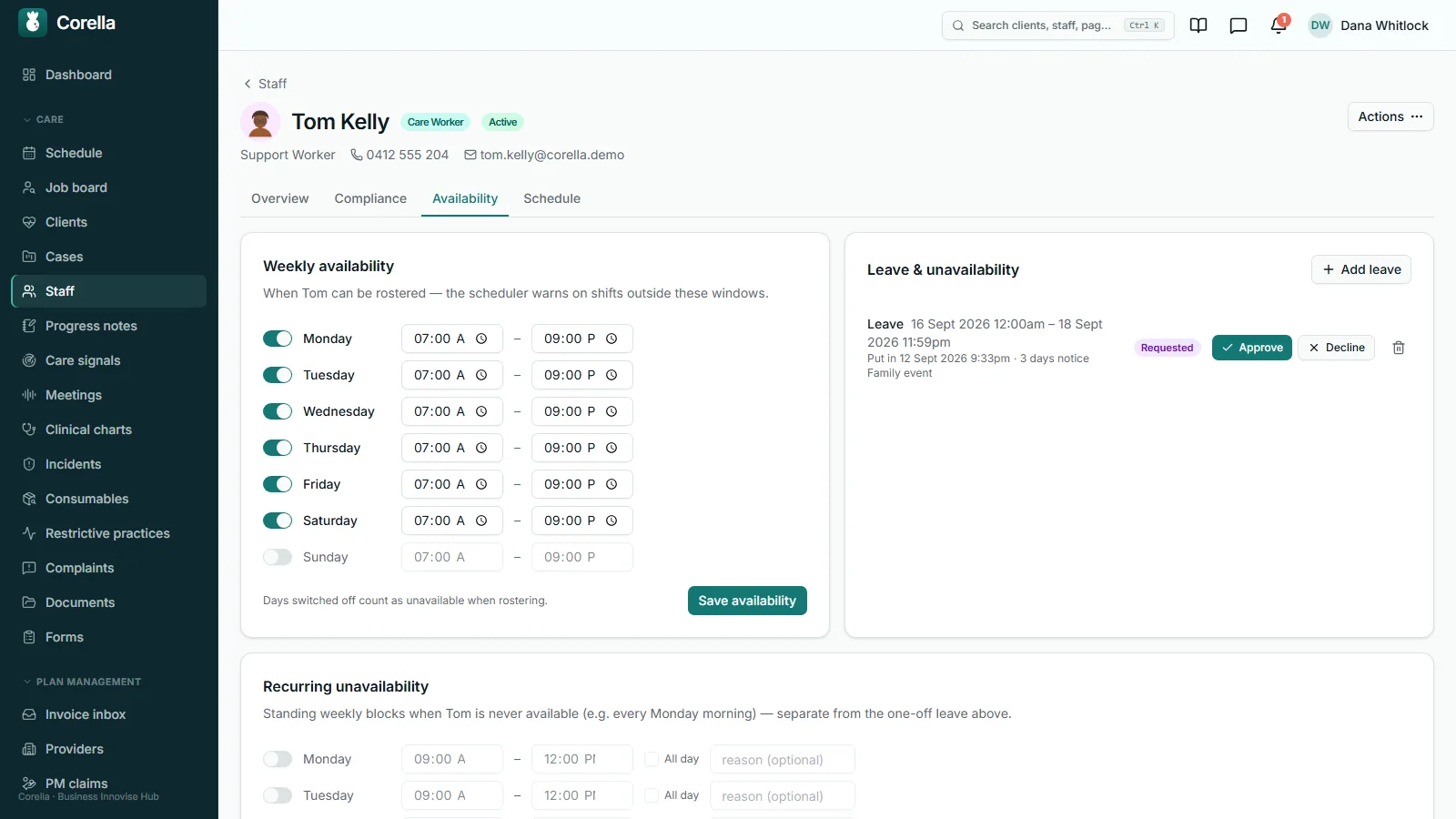
Booking them warns on a missing or expired document, on leave, or on standing unavailability — and the coordinator decides.


What people ask first
The short answers, up front.
What sits on a staff record?
Their details, role, position, employment type, pay group and teams; the most hours they may be rostered in a week and in a day; their compliance documents and skill sign-offs; their availability and schedule; the date of their next review, and when they last signed in — plus up to 12 fields of your own, each office-only or visible to the person.
What happens when a check expires?
The person and the office are alerted in the app as it nears expiry. Booking them warns and shift matching ranks them lower, so the coordinator decides with the facts in view. The worker sends the renewal from their phone, and once the office confirms it, the roster's warning clears.
What does hiring create?
The staff record, a login with a temporary password, and the courses set for their built-in level — due by their first day plus the days each course allows. The contract and the onboarding checklist are the next steps, on the HR screen.
What if someone forgets their password?
They reset it from the sign-in page with a link that lasts 30 minutes and works once. The page answers the same whether or not the address is known, and repeat requests are limited.
Can a former or imported clinician stay on the records?
Yes, as a record-only person, so notes, visits and invoices still point to a real name — kept on the records without a login or a seat.
How is training assigned?
To chosen people, or to everyone on a course's built-in roles — either way with a due date if you want one. Someone added as a new staff member, moved to another role or brought back is given their role's courses by themselves.
Does leave reach the roster?
Yes. Requested or approved leave raises a warning when someone books that person, shift matching sets aside anyone on approved leave, and the office is told of any clash with shifts already rostered and decides what to move.
How does on-call work?
A call-back target — 30 minutes by default — a roster of who holds the phone, an escalation list your team works down, and a 7 am alert for any on-call call still waiting past the target. The person on call can pass a call to the office from their phone, and whoever it goes to is told at once.
Can we text our staff?
Yes — a broadcast the office writes, or an open shift texted to the people who could take it — once three switches agree, one of them ours, and a STOP reply is honoured.
Can we build our own roles?
Yes — start from a built-in level and choose area by area how far it reaches, once your administrator switches custom roles on.
Who can read an HR case?
Only the people you name as HR, the person it is about, and anyone HR adds to that case — and until you name anyone, your administrators count as HR.
Whose screen
The same job, from each seat.

In the office
Coordinators work from the staff list: a compliance chip per person — OK, Expiring, Expired or Missing — and a banner for any leave request waiting on a decision. HR works the HR screen's tabs: people and contracts, onboarding, performance, leave, minutes and confidential cases. Training shows, for each mandatory course, how many are done, assigned and overdue. The on-call register shows who holds the phone now, and the call log what happened overnight.On the phone
Corella runs in the phone's browser and can be added to the home screen under your organisation's name. A worker keeps their contact details, availability window and email choices on their profile, asks for leave there and sees the decision. Their compliance documents show with expiry lights and a renewal goes to the office straight from the phone, the policies waiting for their acknowledgement sit on the same screen, and their courses run on the phone, video included. If an HR case is held about them, they can read it on their profile.A worked example
One on-call call, overnight
The call-back target is the promise your on-call phone makes. Here is what Corella records, and what it raises, when an on-call call waits overnight — demo figures, with the product's own default target.
- On-call call logged
- 11:40 pm
- Your call-back target
- 30 minutes, the default
- Target passes, no call-back yet
- 12:10 am — shown as awaiting call-back
- Who rings next
- Your escalation list, worked by your team
- Still waiting at the morning sweep
- 7 am alert in the app to whoever manages your call log
- Called back
- 7:25 am — counted as past target in the 90-day totals
Demo figures, to show the mechanism. The target is your organisation's setting. The morning alert covers on-call calls still waiting for a call-back past the target in the last 30 days. While someone is on call, the register is on their phone too, showing the calls they took or logged.
In detail
The detail, on the real screens.
Compliance the roster can see
Your organisation lists the checks and documents its workers must hold — a police check, first aid, a driver's licence — and each worker's record shows them with expiry lights, while the staff list sums each person up as OK, Expiring, Expired or Missing. As a document enters its reminder window, the daily 7 am sweep alerts the worker and the office in the app, so the renewal is planned rather than a surprise phone call, and the worker sends the renewed document from their phone for the office to confirm once — then the roster's warning clears. The same record feeds the roster: booking someone whose mandatory document is missing or expired raises a warning in the shift drawer, and shift matching counts documents and training in its ranking. Beside the documents sits a clinical competency register: for each skill you assess — catheter care, a syringe driver — who signed the person off, at what level — under supervision, independent, or able to assess others — when, with what evidence, and when it is due to be assessed again. Each compliance record can be marked verified, with who checked the original and when, and a staff record carries the date of their next review, flagged Review due on the staff list from 30 days before. A compliance record such as a reference check can be kept off the worker's own app while it still counts.

A hiring pipeline — and exactly what a hire creates
Open a role privately, and advertise it on your connected website only when you tick it; give it a closing date and it stays on the site marked Under review and stops taking applications. Website applicants can attach a CV, and each is acknowledged by email once your organisation's email is on. Applicants move from applied through screening, interview, reference check and offer to hired — or to rejected, or the talent pool for next time — and an interview carries a panel with scorecards and a hire approval. Converting the person you hire creates their staff record and their login, carrying their details across, and assigns the courses set for their level; the contract and the onboarding checklist are the next steps, on the HR screen. You can also add someone with No sign-in for now — rostered and paid like anyone else, and sent a set-up link from their record when they need one — and fill in staff records from your own staff sheet, matched by the email each person signs in with, every change shown before it's applied. When you hire someone who'll be on your website, whoever looks after it adds their website photo in the same step.

Contracts, onboarding, reviews — and cases kept confidential
The HR screen keeps the employment side of each person: contracts with type, title and hours per week, two at once where someone holds two roles; an onboarding checklist per new starter, seven editable items by default, with a named person told when it is complete; performance reviews — probation, annual, KPI, development, improvement plan — scheduled and completed with a 1–5 rating; and meeting minutes by type. Grievances, queries, disputes, warnings and commendations live in HR cases that are confidential from the moment they exist: readable only by the people you name as HR, the person the case is about — read-only, on their own profile — and anyone HR adds to that one case. A disciplinary file stays with the people named on it, however senior anyone else is, and each tile counts only the cases its reader can open. File notes keep a dated, timed note of a discussion or meeting about a staff member or a person you support — its kind, who was there and what was agreed — with who wrote it, and nobody ever sees a note about themselves.

Training you write and assign — and can see when it's overdue
A course is a run of steps: reading, a video — uploaded, or a YouTube or Vimeo link — a document or picture, and a marked test with multiple-choice, tick-all, true-or-false and fill-the-blank questions, with a pass mark you set — 80% unless you change it. A readiness panel lists what a course is still missing, and adding or removing a step reopens it for people who had finished, while editing a question doesn't. Twelve written courses — manual handling, infection control, medication assistance, dementia and more — install from a starter library with nobody assigned at install; they're set for roles, so people who join later are given them, and the eight marked mandatory allow no days, so a later joiner is due at once. Assign a course to chosen people with a due date, or to everyone currently on the course's built-in roles; mark it mandatory for a card of done, assigned and overdue. Workers take courses on their phone, where each step comes first and a picture fits the screen and opens full size with a tap; tests are marked on the server, so the answers never reach the phone. Prior learning records training done elsewhere for several people at once, on the date it was actually done. Corella's own courses come ready to publish as well — twelve short courses on using Corella, one for each role, for NDIS, aged care and wound care, each with a picture of every screen it covers — and one you make yours is optional or mandatory, as you choose.

Leave and availability, where the roster reads them
Each person has a weekly availability window, and the office can add standing blocks — several on the same day, one that repeats every second week, or whole days — which also keep that time off your website's booking form. Workers ask for leave from their own profile — whole days, as leave, sick or unavailable — and are told when the office approves or declines it. Leave the office enters is approved as it is entered, and any clash with rostered shifts is flagged at once. Every entry shows when it was put in and how much notice that gave, and your organisation can require a minimum notice for workers' own requests, with sick leave exempt. When someone is booked, requested or approved leave and standing unavailability raise a warning, the weekly window feeds shift matching's ranking, and matching leaves out anyone on approved leave.

On-call, the call log and the people you ring
The on-call register tracks on-call and missed calls against your call-back target — 30 minutes unless you change it — with totals for the last 90 days, the roster of who holds the phone when, and your escalation list: name, role and phone, in order. It draws on the call log, one record of every call or contact — direction, channel, whether it was answered, who was on the other end, who handled it, the outcome, and a follow-up with an owner and a due date. The other end can be a participant, one of your staff, or someone in the contacts directory, where each coordinator, plan manager, GP or funder is entered once and linked to every participant they act for, in the role they hold for that person. A call-log follow-up says what it's for and goes to the person's coordinator unless you choose someone else; they're told at once and see it on their dashboard until they mark it done, with what was done.

Messages between your staff
Your staff message each other one-to-one, in groups, or in a conversation on a participant's record that the office starts, and your administrator chooses who can read what — only the conversations someone is in, or also those about participants they're rostered with, or their team's. Mark a message urgent and everyone in the conversation is asked to acknowledge it, with who acknowledged and when shown on the message; @mention someone already in the conversation to flag it for them; and ordinary messages show who has had the conversation open. A message in a participant's conversation reaches their record only by a deliberate click — as a progress note dated when it was written, or, by a coordinator, as a care-plan task. A message is withdrawn rather than deleted, and the original stays in the audit log.

Telling people: a gate first, then email and text
Nothing your organisation sends goes out until three separate switches agree, and one of them is ours: the email or text service has to be connected on your instance; we have to approve your instance for sending, a switch only we hold, off until you go live; and your organisation has to switch the channel on. Email then adds two more layers: four categories — urgent, roster, intake and admin — where your organisation sets the ceiling, and each person's own choice on their profile. The office writes text broadcasts — to all staff, a role, a team or the people you support — and can text an open shift's day and hours to the workers who could take it. Every text names your organisation first and carries “Reply STOP to opt out” — and a STOP is honoured: STOP replies are picked up every 15 minutes, recorded against the number, and the next broadcast skips it.

Roles you build yourself, from a fixed vocabulary
Access starts as a ladder of four built-in levels — care worker, finance, coordinator, administrator — each seeing everything below it. That breaks on a real request: three nurses on identical clinical access, with invoicing visible to only two of them. So you can build your own roles. Start from one of the four built-in levels, then choose area by area how far it reaches — one dropdown per area — from the roster and clinical records to money, HR, file notes, settings and your website — so a senior clinician can keep the whole clinical picture without seeing invoicing or payroll. You compose from that vocabulary. The four built-in levels are computed rather than stored, so they always mean the same thing; every custom role carries a name of its own; and every role change is audited with what it could reach before and after. You can also rename the built-in levels in your own words — display only.

Straight answers
Safety built in: what warns you, and what it stops.
Warns you
- Booking someone with a missing or expired mandatory document, requested or approved leave, or standing unavailability raises a warning in the shift drawer — the coordinator decides.
- A staff document entering its reminder window alerts the worker and the office in the app at 7 am.
- Each mandatory course shows how many are done, assigned and overdue.
- An on-call call still awaiting a call-back past your target is alerted at 7 am to the people who manage your call log.
- The recruitment screen shows whether applicants are being acknowledged by email.
Stops you
- Nothing your organisation sends by email or text goes out until three switches agree — and one of them is ours.
- A text broadcast to more than 500 recipients is refused rather than half-sent.
- A worker's own leave request inside your minimum notice is refused — sick leave exempt, and the minimum is yours to set.
- Shift matching leaves out anyone on approved leave.
- A change to your roles that would leave nobody able to administer your organisation.
Who stays responsible
Corella keeps the records and raises the flags; your people make the calls. A coordinator decides whether to book someone the drawer has warned about. HR decides what goes in a case and who else may read it. An administrator approves a hire and records prior learning. A person signs off a clinical skill, and the record keeps their name.
The rulebook
Questions, answered properly.
- Rostering & attendance — where the warnings appear
- Shift matching — documents and training in the ranking
- Compliance & documents — policies and the audit log
- Your words — role names and the worker word
- Try the NDIS demo
In the help centre

What does hiring someone set up?
Does assigning training by role enrol new starters automatically?
How does an expired check show when rostering?
Who can read an HR case?
How does the on-call register handle a missed call?
Can we text our staff?
Can staff message each other in Corella?
How is an urgent message handled?
What happens if we switch custom roles off?
Can staff see their own compliance and training?
How is a completed course recorded?
Can overdue training stop someone clocking on?
Can Corella replace our HR software?
Guides for this
Read the rule behind it.

See HR, recruitment & training for care providers on a live instance.
Try the NDIS demo with a time-boxed pass, or book a walkthrough and we'll show you this part of Corella in your own words.